
Real Microsoft Intune Project 3: Microsoft Defender for Endpoint.
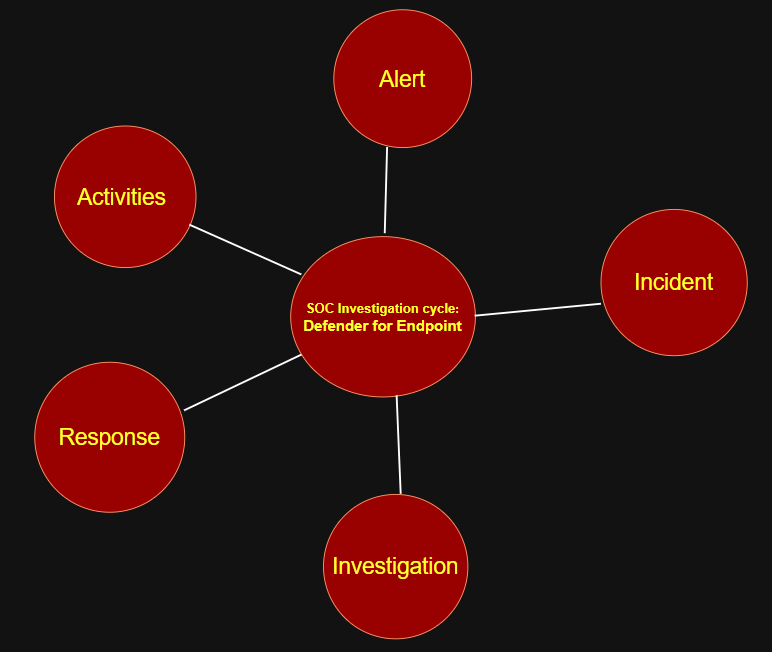
This project focused on how enterprise IT and security teams monitor, detect, and investigate security events on managed devices.
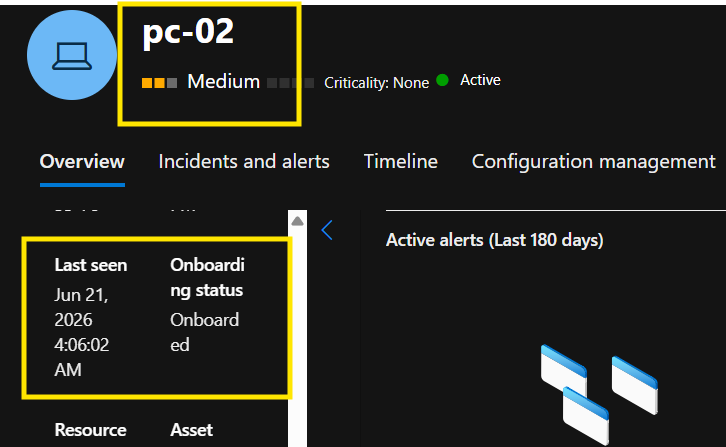
Before starting the investigation, I validated that Microsoft Defender for Endpoint was integrated with Intune, the Windows 11 endpoint was successfully onboarded, and security telemetry was flowing correctly into the Defender portal.
With the environment fully configured, Defender for Endpoint provided visibility into device activity, security alerts, and threat data, allowing me to investigate endpoint events from detection through analysis.
The project was completed in six phases:
- Validate Telemetry – Verify that endpoint telemetry and security events are being collected.
- Generate Suspicious Activity – Simulate suspicious behavior on the endpoint.
- Observe Alerts and Correlation – Review how security events are correlated into alerts and incidents.
- Analyze Incidents – Investigate why incidents were generated and understand the associated risk.
- Review the Device Timeline – Trace user, process, and system activity related to the incident.
- Evaluate Automated Response Actions – Review how Defender for Endpoint detects, responds to, and helps contain threats.
This project mirrors how SOC Analysts investigate endpoint alerts in enterprise environments, moving beyond the portal interface to focus on detection, analysis, investigation, and response.
4 things we need to established for endpoint device:
- Risk Level: Confirmed to be acceptable and within policy thresholds.
- Onboarding Status: Device successfully onboarded to Microsoft Defender for Endpoint.
- Last Check-In: Device had checked in recently and was communicating with the service.
- Device Status: Endpoint was active and reporting telemetry.
- Telemetry: Security events and device telemetry were being collected successfully for investigation and analysis.
I went and intentionally created a text file and executed ( EICar malware) on the remote device and investigated what happened.
When I opened it, the defender detected an immediate action and blocked it and removed it from the computer as expected.
After opening the file, Microsoft Defender for Endpoint generated an incident, marking the beginning of our investigation.
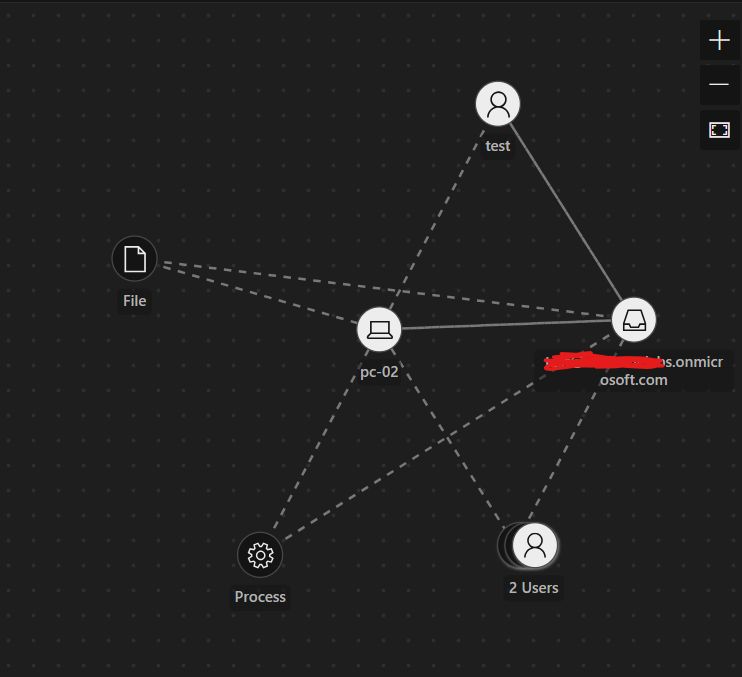
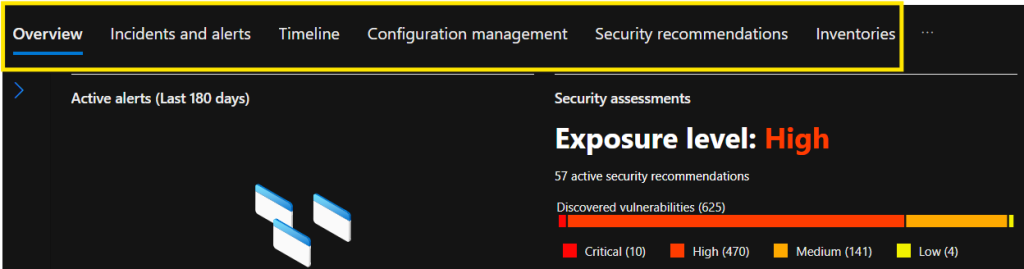
From this point, we can examine the alerts, evidence, device timeline, and related activities presented by Defender. These insights help us connect the dots, understand the sequence of events, and build a complete picture of what occurred on the endpoint: file, Device, user, process and evidence.
Time line is one most important section, it shows the chronological order for the incident.
The incident tab shows that text file (test file) malware was blocked.

Moving to the incident tab,the screenshot below highlights the Device Timeline and Related Activities associated with the incident. We can clearly observe that Notepad was executed and a text file was created on the Windows 11 endpoint. This timeline data helps analysts correlate events, validate alerts, and build a clearer picture of the activity that led to the incident.
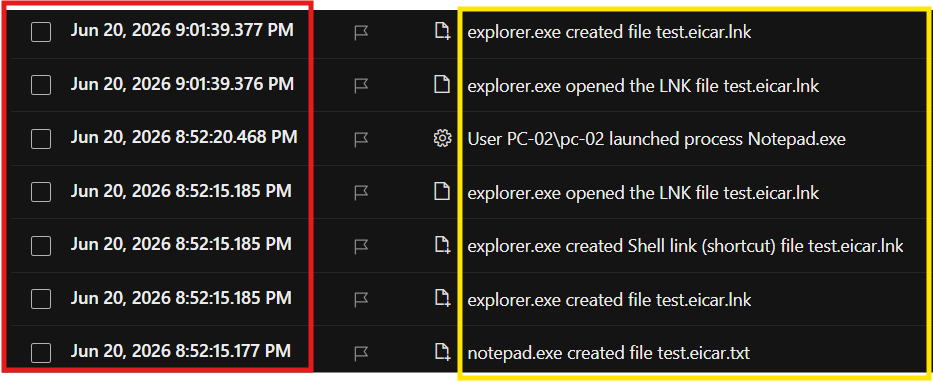
Upon opening the text file, Microsoft Defender for Endpoint detected the suspicious activity, evaluated the associated risk, and generated an incident for investigation. The defender then initiated automated response actions to mitigate the threat and secure the device.
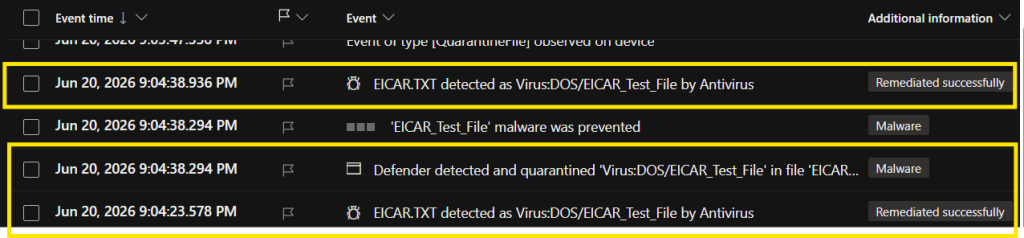
Automated Response, Device Isolation, and Remediation!
Next, we’ll examine how Microsoft Defender for Endpoint responded to this incident and the actions it took to protect the device.
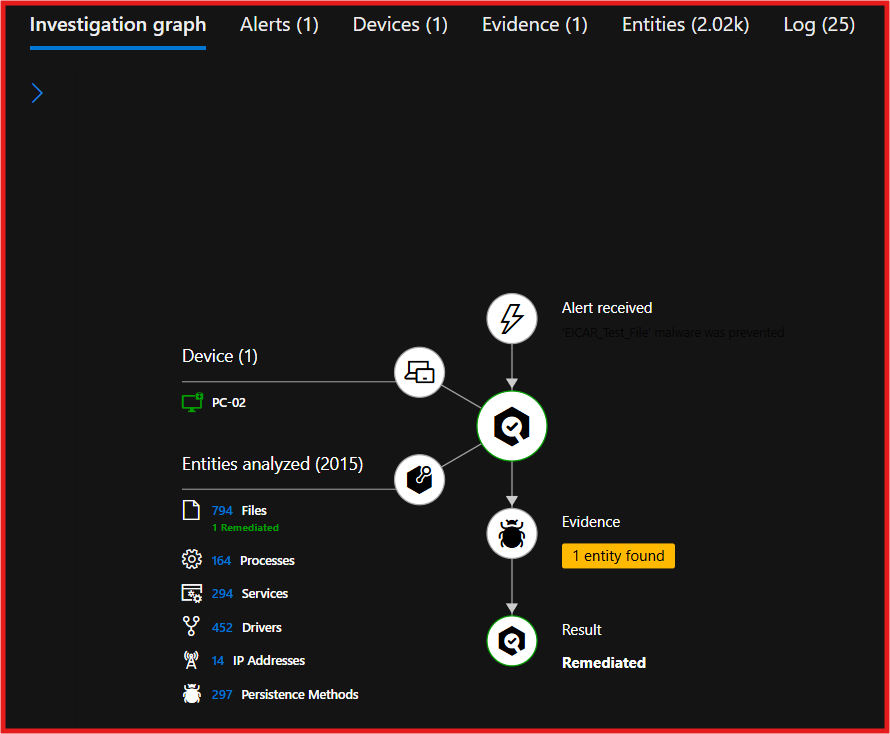
The graph below provides a high-level view of the incident investigation. At the center is the incident itself, connected to the affected device, generated alerts, and related evidence. Defender automatically analyzed the activity, assessed the risk, identified malicious file and prevented from execution and initiated response actions without requiring immediate human intervention.
This visualization helps SOC analysts quickly understand the scope of the incident, correlate related events, and see how Defender detected, investigated, and responded to the threat.
The Evidence tab shows that the file was classified as malicious and its execution was prevented. This means Microsoft Defender for Endpoint detected the threat in real time, blocked it before it could run, and prevented any impact on the device. Since the threat was successfully stopped, no compromise or malicious activity occurred on the endpoint.
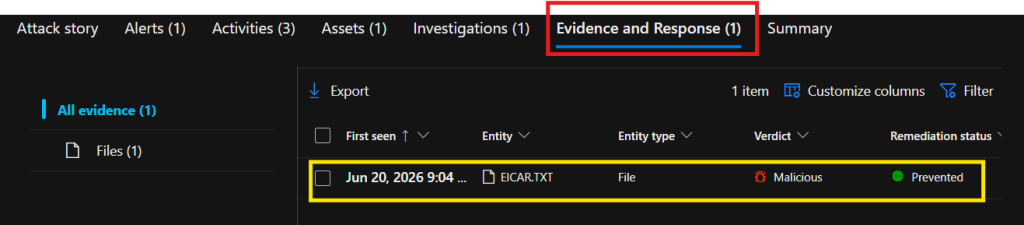
At this stage of the investigation, a SOC Analyst would typically ask the following questions:
- Was the file malicious?
Yes. Microsoft Defender for Endpoint identified and classified the file as malicious. - Was the malicious file successfully executed?
No. Microsoft Defender for Endpoint prevented the file from executing. - Was the device compromised or was any damage caused?
No. The threat was blocked before execution, and there were no indicators of compromise or signs of impact to the endpoint. - Is device isolation required?
No. Automated remediation was successful, and there is no evidence of lateral movement, persistence, or compromise that would require device isolation. - What is the overall incident outcome?
The malicious file was detected and blocked before execution. Defender successfully remediated the threat, no compromise occurred, and the endpoint remained protected.
Investigation Conclusion:
Based on the evidence collected, this incident was successfully detected, prevented, and remediated by Microsoft Defender for Endpoint without requiring additional containment actions from the SOC team.
For validation purposes, let’s perform a controlled Device Isolation exercise and observe its impact on the endpoint!
Note, isolation is not required for this incident.
Device Isolation is a powerful containment action and should be used carefully during incident response. SOC analysts typically use device isolation when there is evidence of compromise or a need to prevent a potential threat from spreading across the environment.
When a device is isolated, it is blocked from communicating with other devices and corporate network resources. However, the endpoint remains connected to Microsoft Defender for Endpoint, allowing security telemetry to continue flowing.
This ensures that the SOC team maintains visibility into the device, can continue monitoring activity, collect forensic evidence, and perform additional response actions while the device remains contained.
Screenshot shows process of isolating device.
For full isolation uncheck the box. Isolation will be enforced and taken immediately.
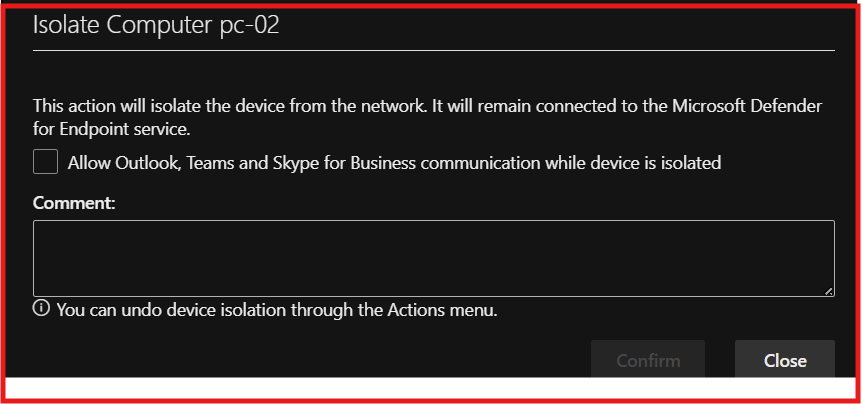
We can see that the device was isolated.
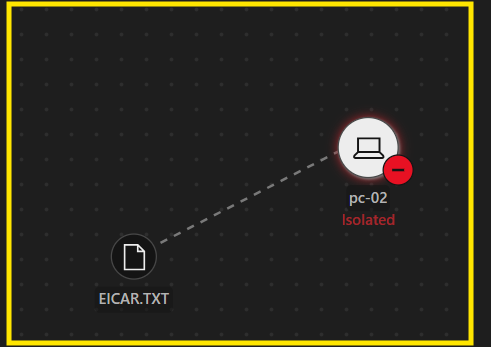
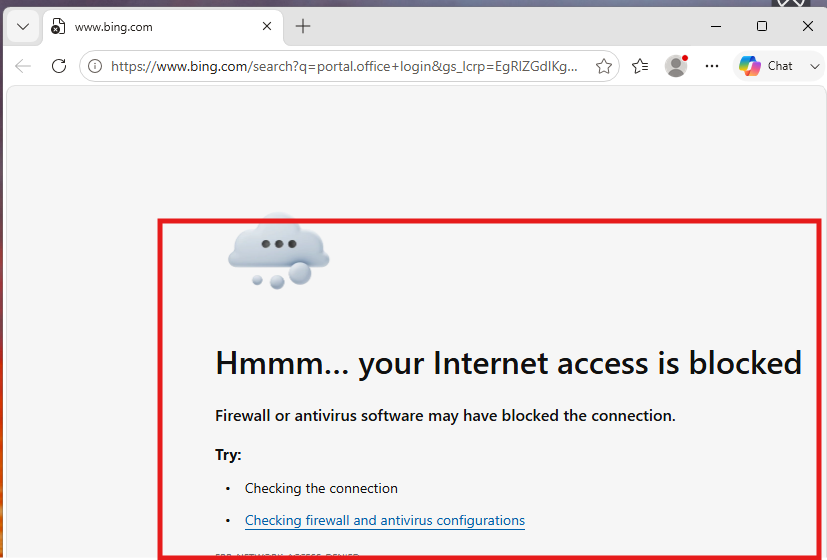
Let us see the immediate impact on the end device.
On the isolated device, I attempted to access Office.com to verify the containment action. As expected, network access was blocked, and the device was unable to reach the website, resulting in the error shown below.
Now, let us restore normal operation state, this process called release from isolation.
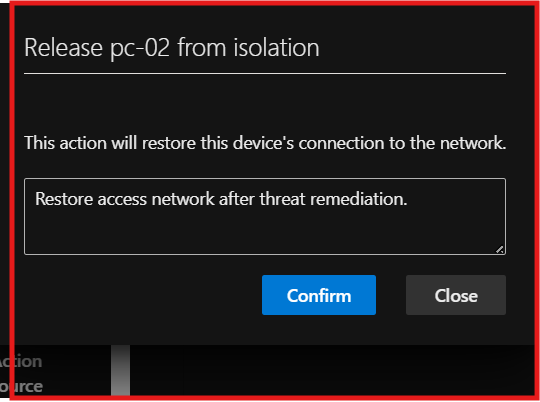
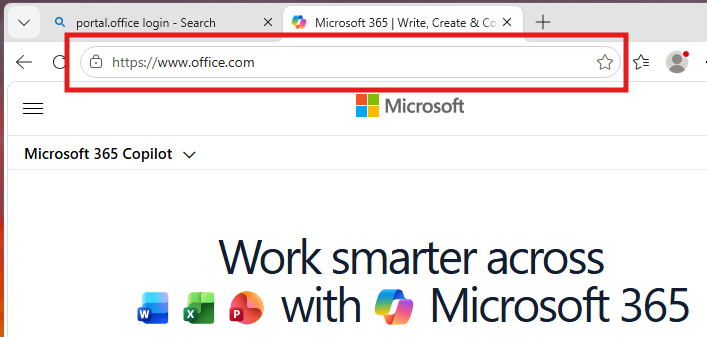
After the device was released from isolation, I tested internet connectivity from the endpoint. As expected, the device was able to access external websites successfully, confirming that normal network communication had been restored.
Incident closure!
Endpoint to identify, assess, and contain threats before they can impact the environment. From initial detection to final validation, the available telemetry, alerts, evidence, and response actions provided a clear understanding of the event and its outcome.
Final assessments for this investigation, I intentionally triggered a Microsoft Defender for Endpoint alert to generate an incident. This allowed me to follow the entire investigation lifecycle, from detection and alert generation to analysis, remediation, and validation.
It also provided insight into how human investigation and automated response work together to strengthen endpoint security.
Author, Muhidin Warsame,