
Preparing a Windows 11 Environment for Microsoft Intune Enrollment.
Why I Chose Microsoft Intune, through my Microsoft 365 work and personal lab projects, I noticed that many organizations struggle to manage and secure endpoint devices, especially in remote and hybrid work environments. After researching modern endpoint management solutions, I found that Microsoft Intune effectively addresses these challenges through a cloud-first management approach. Also this is my core skills of the M365 ecosystem.
Intune enables organizations to secure devices, enforce compliance, protect corporate data, and provide users with secure access to company resources from virtually anywhere.
In this project series, I share my real-world, hands-on Microsoft Intune experience and demonstrate how organizations can leverage Intune to modernize endpoint management.
Through practical implementations of Mobile Device Management (MDM), Mobile Application Management (MAM), encryption, compliance policies, and device security controls, I will showcase how modern enterprises can build a secure, and productive endpoint management strategy.
Required Skills and Knowledge
To follow along with these projects, you should have:
- A basic understanding of Microsoft cloud technologies
- Access to a Microsoft 365 E5 tenant or equivalent licensing
- Familiarity with Microsoft Entra ID administration
- Experience navigating the Microsoft Intune Admin Center
- Knowledge of device enrollment and endpoint management concepts
- Basic understanding of endpoint security and compliance policies
Lab Environment
My lab environment includes:
- A clean Windows 11 virtual machine
- A Microsoft 365 E5 tenant
- Microsoft Entra ID users and groups
- Microsoft Intune admin portal access
- Test devices for enrollment and management scenarios
What We Will Cover
Throughout this project series, we will explore:
- Windows device enrollment into Microsoft Intune
- Mobile Device Management (MDM) policies
- Security and compliance policy deployment
- Password and encryption enforcement
- Device compliance monitoring
- Security configuration and enforcement
- Endpoint management best practices
- Real-world troubleshooting scenarios
Practical Project: Lab 1
Preparing a Windows 11 Environment for Microsoft Intune Enrollment
Our first lab focuses on preparing and configuring a Windows 11 environment for Microsoft Intune enrollment and device management.
To follow along, you will need:
- A Microsoft 365 E5 license (or equivalent license that includes Intune)
- Administrative access to Microsoft Entra ID and the Microsoft Intune Admin Center
- A mobile device for Multi-Factor Authentication (MFA)
- A clean Windows 11 virtual machine
For this lab, I used VMware Workstation to create a dedicated Windows 11 test environment. This approach allows us to safely validate enrollment, policy deployment, compliance settings, and security configurations without requiring physical hardware.
By the end of this lab, we will have a Windows 11 device successfully enrolled in Microsoft Intune and ready for policy, compliance, and security management.
Let us get started!
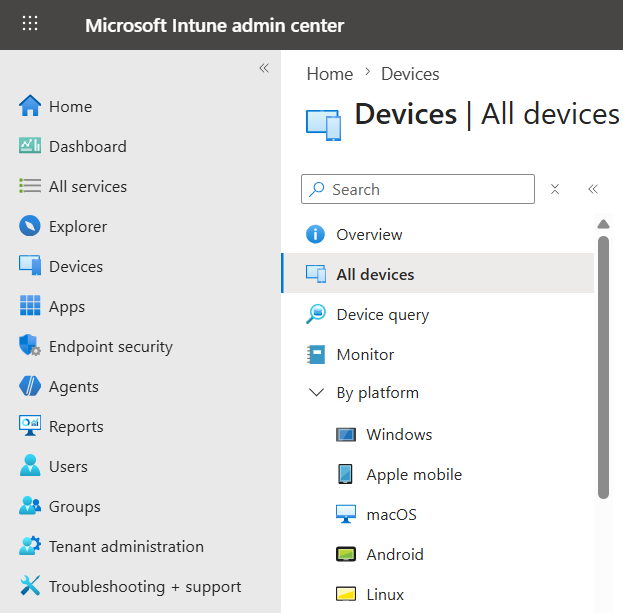
Intune Portal
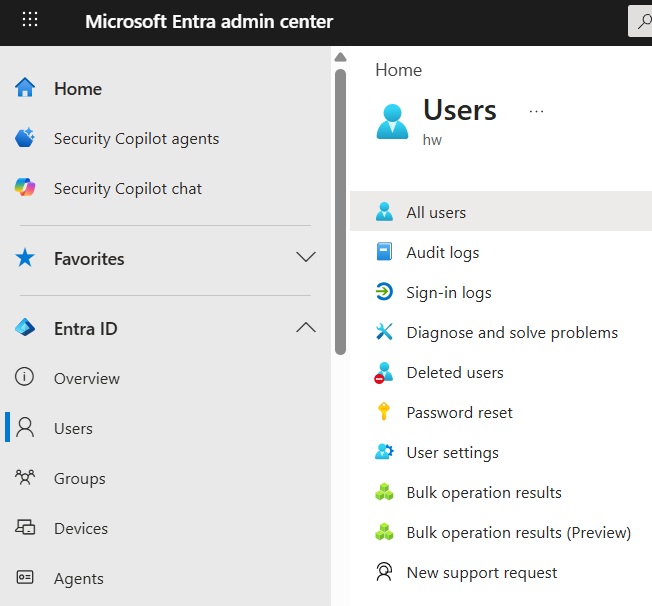
Entra ID portal
Our M365 E5 licensing

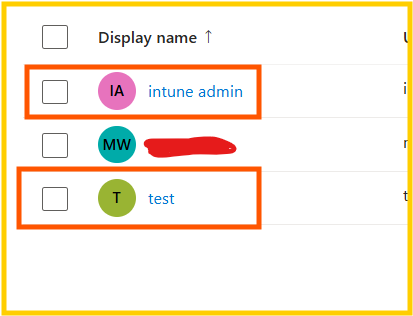
We have 2 users in Intra ID as well as Intune portal, these users are synchronized from Entra ID to Intune portal, intune admin manages all intune devices and test User presenting normal corporate User.
Windows 11 workstation!
Now, let us work in Windows 11 environments.
Basic windows enrollments prerequisite for windows readiness and reachability.
Windows edition -must professional or education
- Network connectivity, machine must connect to the internet to access intuneportal
- Windows, not domain joined or not entra iD joined
- Date and time must be correct
Next, Once we complete the above task, let work on windows enrollment and verify: if the device appears in both Entra ID and Intuneportal with correct information and device should be ready to accept policy and be compliant.
Go Windows setting , accounts and add the work and school account.
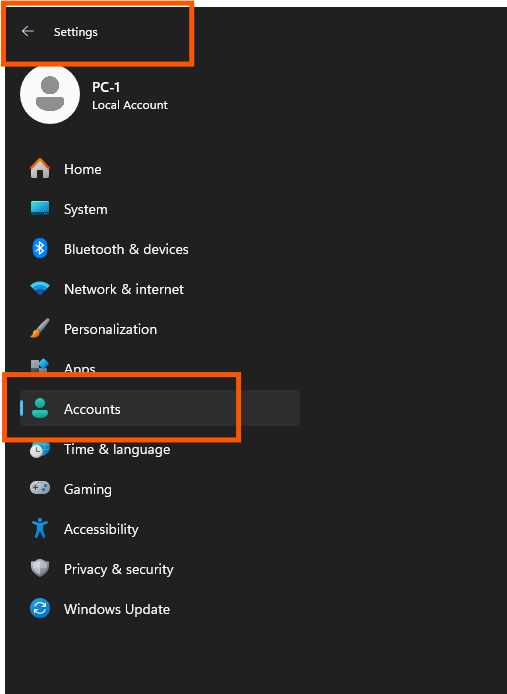
Connect.

Select join this device to Microsoft Extra ID and click next.
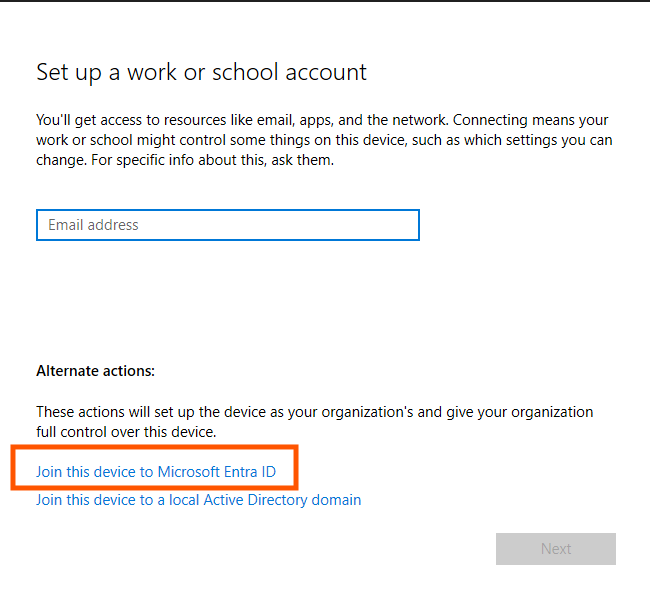
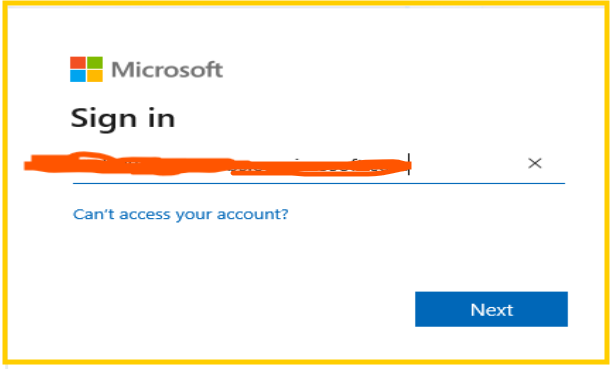
Use the correct email as end-User, this email must have a license and already exist in Entra ID as we mentioned earlier.
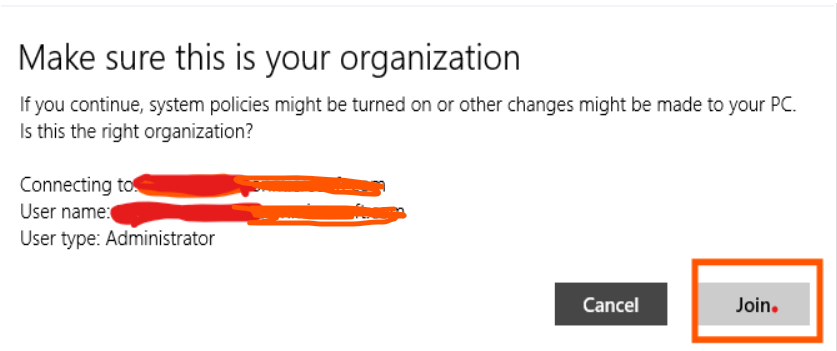
Click Join
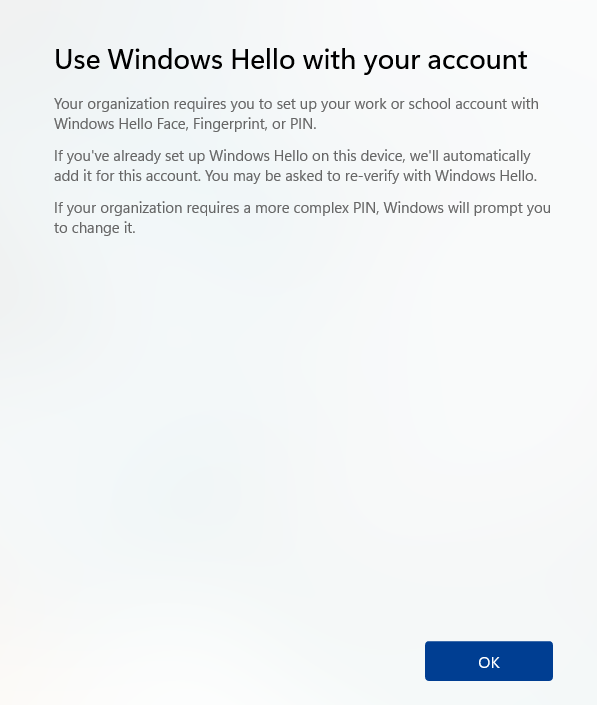
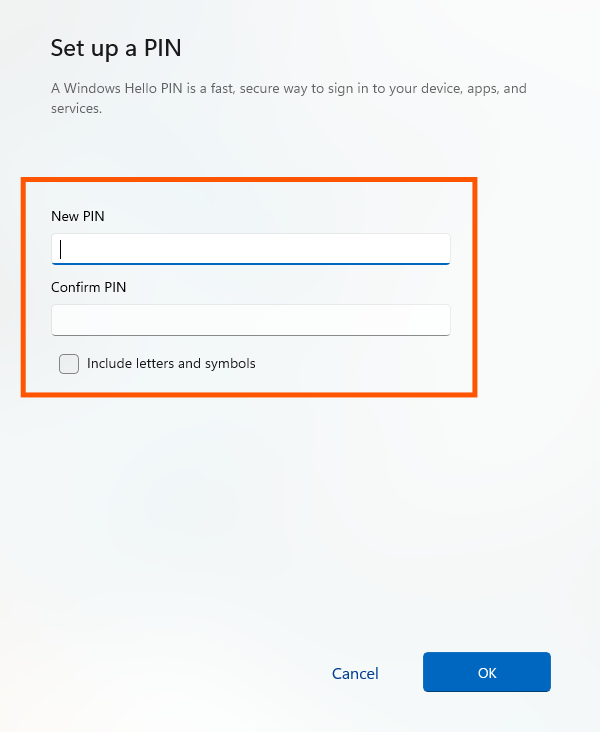
Click ok to turn on Windows set up, this will create a pin.
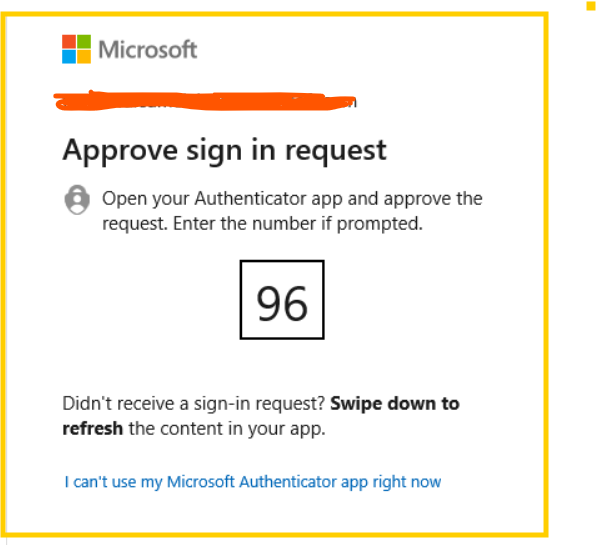
Now, we need to have a physical cellphone to approve our MFA request otherwise this enrollment will not work. This is real work, it’s not just a home lab.
Provide a 6 digit pin number and click ok.
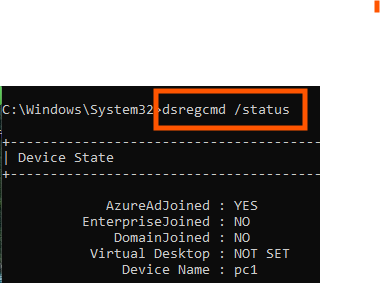
Now , this windows11 machine is controlled by intune. How do we know?
Windows 11, Use dsregcmd /status and will tell you a little bit about this device.
In the Entra ID portal windows 11 device shows up, that is wonderful! But what about intune let us see.
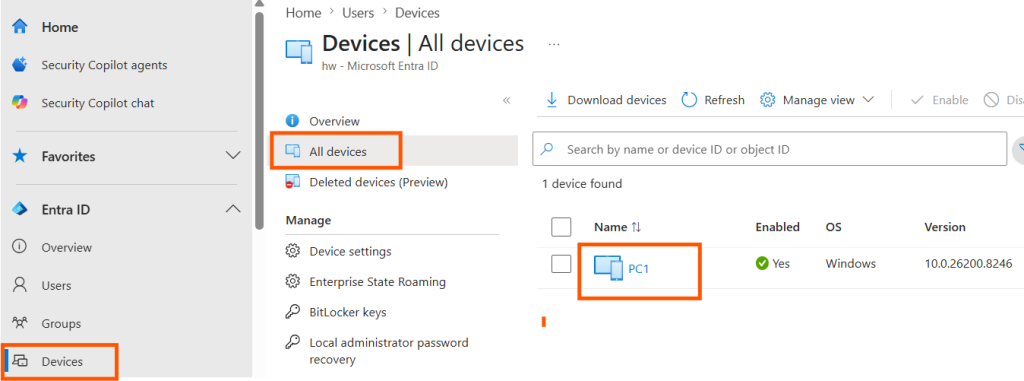
It shows up in the Intune portal as well! Boom.
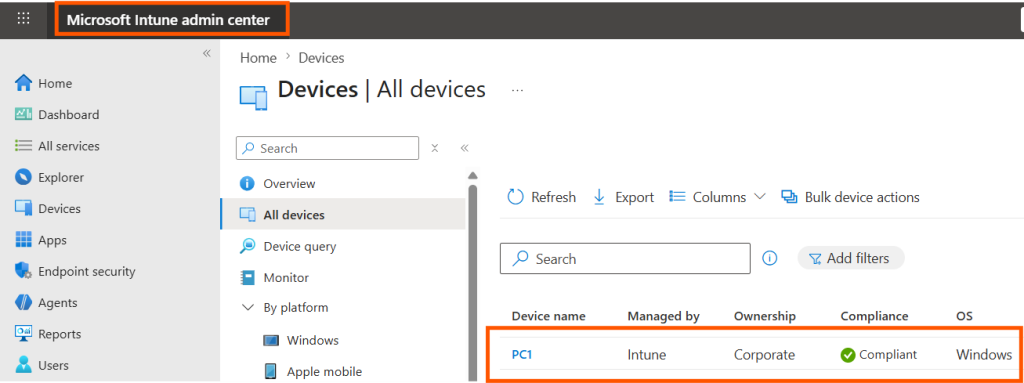
2 important areas that intune checks: Ownership and Primary User and we have those 2.
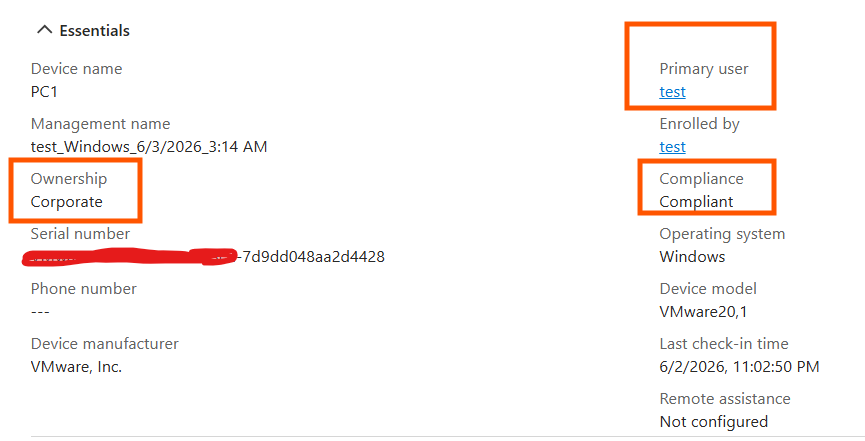
At this stage, we have successfully verified that the Windows 11 device is properly enrolled and communicating with Microsoft Intune. This is the most important step, the device may appear in intune but may not be correctly configured!
The device is reachable, capable of receiving policies, and ready for configuration and security enforcement from the Intune Admin Center.
This foundational setup is a critical first step in modern endpoint management, ensuring that devices can be centrally managed, monitored, and secured throughout their lifecycle.
That wraps up Lab 1 of my Real-World Microsoft Intune series. Next labs will cover configuration profiles, security baselines, Windows hardening, compliance policies, and more enterprise endpoint management topics. If you’re interested in Microsoft Microsoft 365 environments and security, Follow me and join the conversation.
Author Muhidin Warsame