
Note: Compliance Policies must be designed, reviewed, and deployed carefully before going live, as a single policy can impact thousands of devices and create significant troubleshooting challenges if misconfigured.
In this project, we’ll implement Compliance Policies and Conditional Access in Microsoft Intune to ensure that only trusted users and compliant devices can securely access organizational resources.
We’ll also explore how Intune identifies non-compliant devices and works with Entra ID under the Conditional Access to protect company data from unauthorized access) and good intention, we will break the device compliance and we will analyze these results in lab 4.
Let us get started!
In the intune admin center, navigate the compliance section and create a new policy:
Configure bitlocker. Firewall and Anti-virus
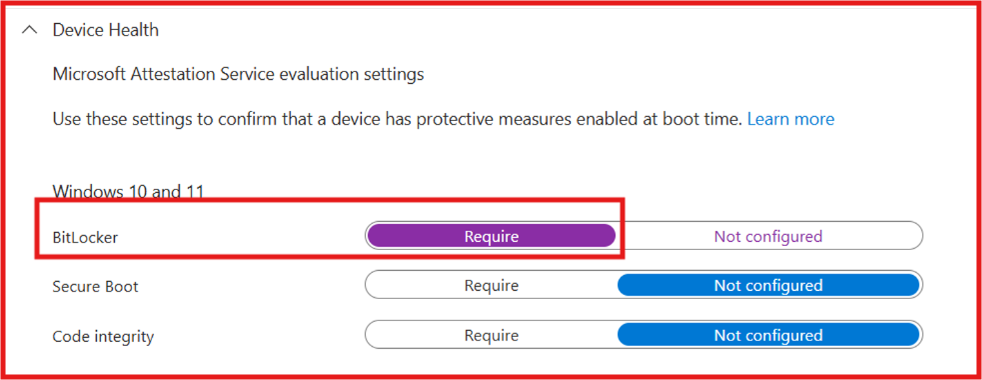
Next, we’ll turn on Windows Firewall and Antivirus as required. Intune Compliance Policies will automatically re-evaluate the device and restore its compliant status once all security requirements are met
Intune Delivered these policies to the windows 11 device and will observe how Intune will react and work with conditional access in Entra iD.
We will switch to Entra ID and configure conditional access, we will disable default security so we can customize what we intend.
See the screenshot as below normal signin inEntra conditional access is success and compliance break, it shows fail.
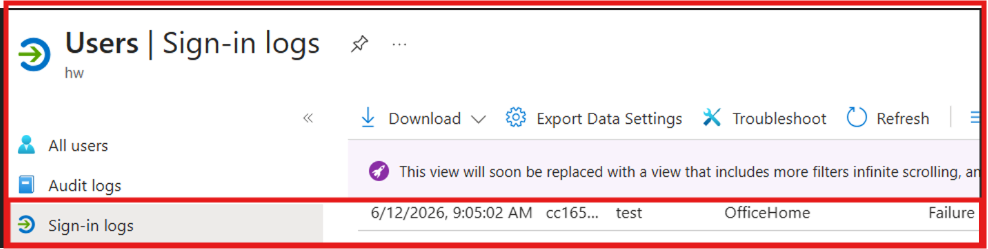
To test and evaluate device compliance, I intentionally changed the Windows Firewall settings on the device. The results below show how Intune detected the change and marked the device as non-compliant based on the configured compliance policy.
Notified the user that the device no longer met the organization’s compliance requirements.
This is not a simulation, it’s a live environment.
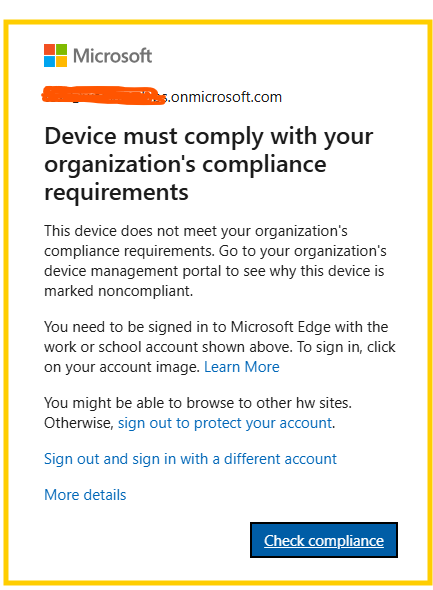
The end device has real health issues and is no longer trusted.
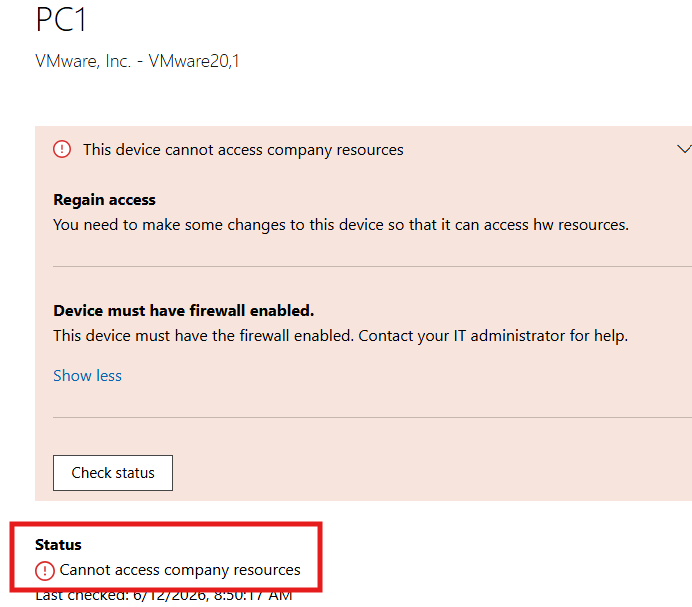
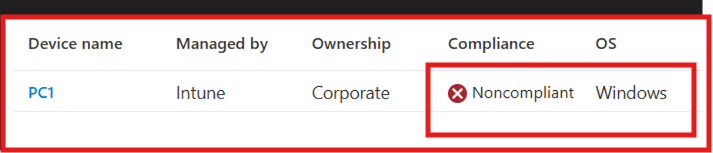
Intune portal,this device marked as non compliant, intune checks with device complaint periodically.
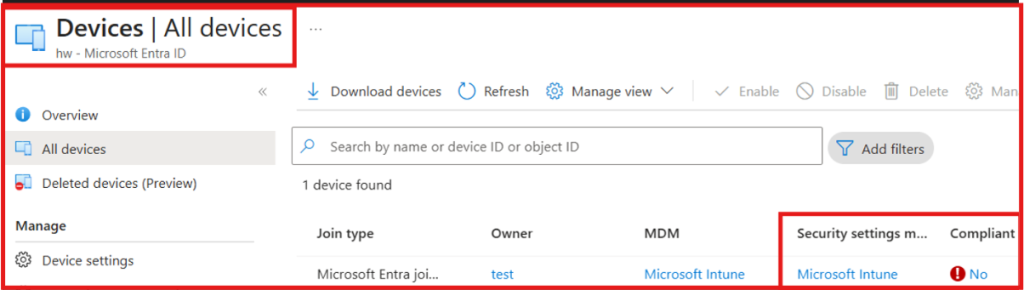
Entra ID blocked device as intune reported non compliant.
In Entra iD under the sign in activities shows failure.
Device configuration Profiles:
In this project series, I share my hands-on Microsoft Intune experience and demonstrate how organizations can leverage Intune to modernize endpoint management.
Imagine a company with remote employees who need access to Microsoft 365 and corporate data from anywhere, using both managed and unmanaged devices, without compromising security. How would you do that?
In this labs, implemented and created Windows 11 security hardening controlled and managed by microsoft intune:
3 key areas that I covered in this implementation, that improves security posture.
1.Baseline hardening:
-minimum password
-requires device encryption
Turn off Microsoft defender anti virus.
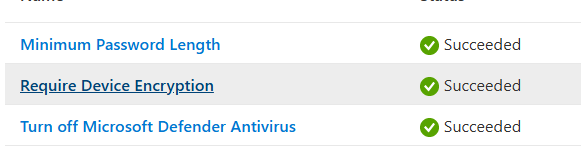
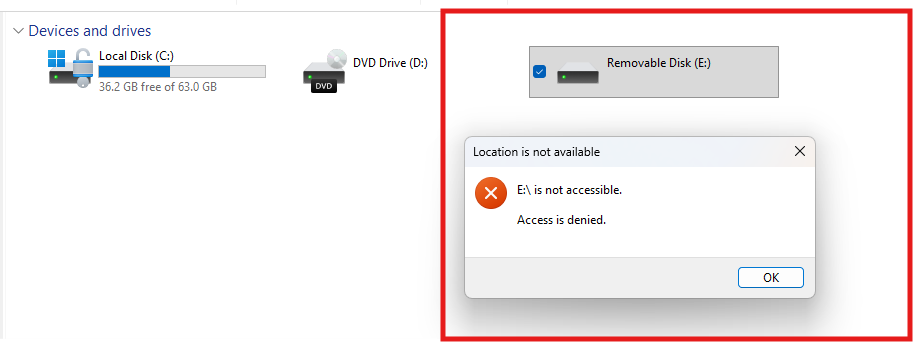
2. Block USB storage restriction. Copy data, malware are major risk of usb storage.
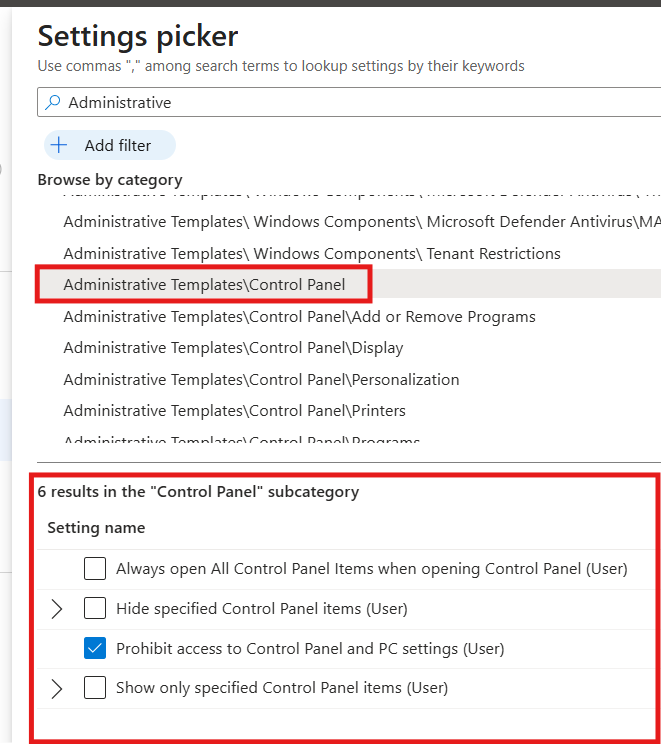
3. block control panel and allow only what the user needs. This is not the best option because it restricts the pc setting but this is a lab environment.
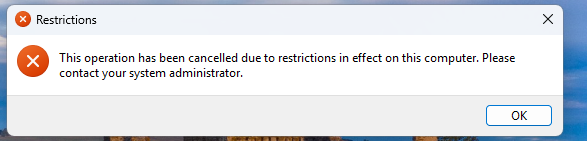
The control panel is not opening due to policy restriction.
To wrap up this lab, we implemented Device Compliance Policies and Conditional Access in Microsoft Intune.
We observed how a device is marked as non-compliant when it fails to meet security requirements and how Conditional Access helps protect organizational resources by allowing access only from trusted users and compliant devices.
Previous Project read here.
Muhidin Warsame